---
title: Applicant Tracking System (ATS) Setup Guide
description: Learn how to install and use the Applicant Tracking System (ATS) for HubSpot to manage applications, jobs, and offices, streamline hiring, and find qualified candidates.
---
[Skip to content](https://www.growth-operations.com/help-articles/ats-setup-guide#main-content)
[](https://www.growth-operations.com/)
Open main navigation
Close main navigation
- [Submit Help Request](https://www.growth-operations.com/submit-help-request)
[Submit Help Request](https://www.growth-operations.com/submit-help-request)
How can we help you?
- There are no suggestions because the search field is empty.
1. [Help Articles](https://www.growth-operations.com/help-articles)
2. [Setup Guides](https://www.growth-operations.com/help-articles/setup-guides)
3. [Applicant Tracking System (ATS)](https://www.growth-operations.com/help-articles/setup-guides#applicant-tracking-system-ats)
# Applicant Tracking System (ATS) Setup Guide
### **Overview**
Turn your HubSpot account into a best-in-class Applicant Tracking System. With the click of a button, you’ll have everything your team needs to **identify** candidates**, engage** applicants,and **hire** with HubSpot.
**Identify** great fit candidates using AI-powered resume scanning, plus with geo-targeting you can group candidates near a specific work location.
**Engage**applicants at scale with database-powered content & automation.
**Hire** exceptional talent by providing an even better applicant experience.
### **Contents:**
1\. ATS Applications
a. Application Records
b. Application Pipeline
c. Application Text Parsing
2\. ATS Jobs
a. Job Records
b. Job Table
c. Job-Powered Content
3\. ATS Offices
a. Office Records
b. Office Proximity Searches
### **Prerequisites**
Before proceeding, make sure you have signed up for a Growth Operations account [here](https://www.google.com/url?q=https://app.growth-operations.com&sa=D&source=editors&ust=1787294058634207&usg=AOvVaw15JdPTLN2KbF6mcpFOnvJg). You’ll also need a HubSpot account to complete installation.
### **Installation**
You can install the app by visiting [app.growth-operations.com](https://www.google.com/url?q=https://app.growth-operations.com&sa=D&source=editors&ust=1787294058634875&usg=AOvVaw1nfVjJOOVsqhMS5hKFr9N7), selecting “Browse Apps”, and then hitting the install button. Installing the app will automatically sign you up for a 14-day trial, which includes all features.
### **Authorization**
On the authorization screen, click the “Connect” button to authorize HubSpot.

This will take you to hubspot.com to select your desired portal to connect to and to approve the necessary permissions.
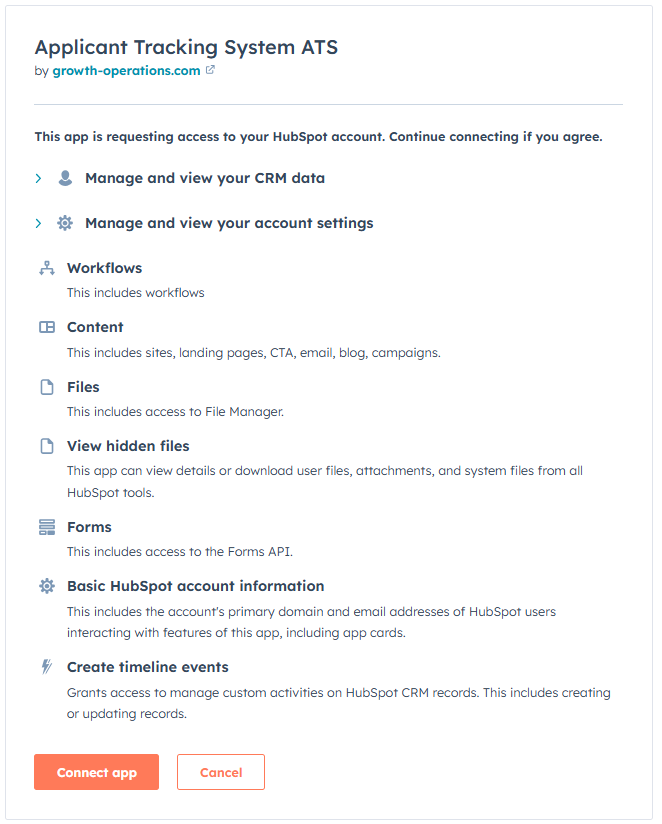
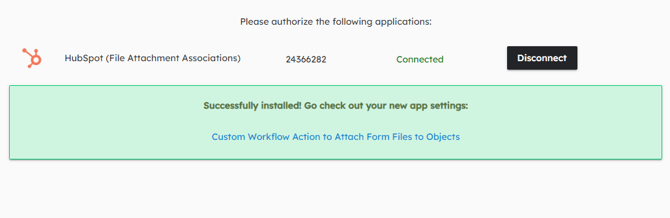
Once you are connected, the installation is complete!
### **Features:**
You can now use any of the Applicant Tracking System (ATS) components. See below for a breakdown on what each feature offers:
**1. ATS Applications -** applications are what connect candidates to the jobs they are interested in. Applications are created automatically when someone applies on the ATS Job Listing Page. They can also be manually created, or created automatically via custom workflow automation.
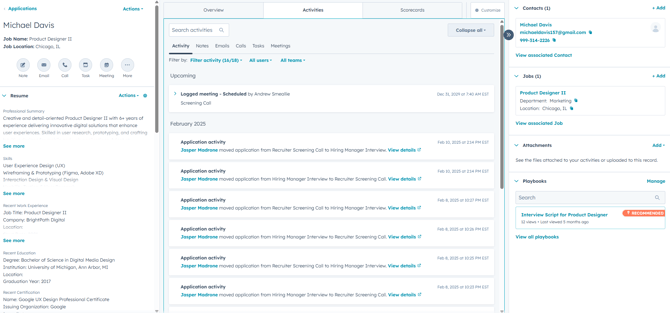
- **Application Records** - on an individual application record you’ll be able to see a summary of the candidate, timeline of activities related to the application, and view & edit key details about where they are in the hiring process, who their hiring team is, and more.
- **Pro Tip:** The application record is highly customizable. Add custom fields to track more than [the standard application properties provided](https://www.google.com/url?q=https://docs.google.com/spreadsheets/d/1RczmudqXAQVBeJF222y9vI5N5xJdQpqGIYgXNvv9wxo/edit?usp%3Dsharing&sa=D&source=editors&ust=1787294058639090&usg=AOvVaw0Ukx9IkXUfoev0r-4KMpu2), reorder cards anywhere on the record layout, and create new sections to better highlight what matters most to your team.
*Example Application Record*
**
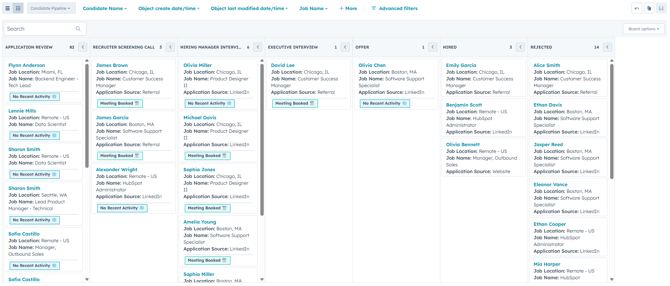
- **Application Pipeline** - view applications in aggregate on an application board view. Each column indicates a step within your hiring process, with each card representing a candidate’s application.
- **Pro Tip:** Go into pipeline settings and customize your board experience. Columns can be modified to better reflect your hiring process. Required fields ensure your team inputs the right information at the right time, and helps facilitate internal processes. Cards can be customized in terms of what information is displayed in the board view, and tags are a great way of further highlighting what’s happening on an application at a glance.
*Example Application Pipeline*
**
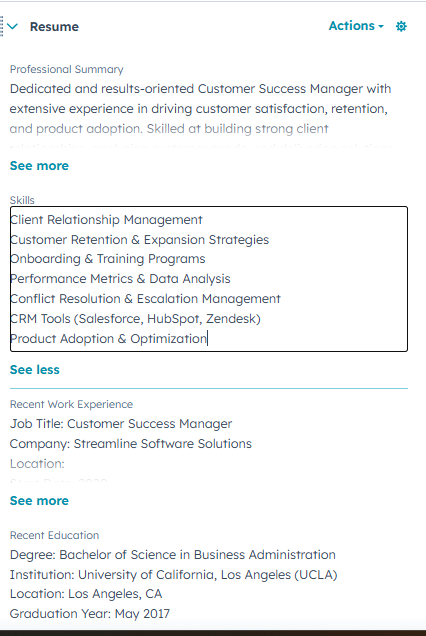
- **Application Text Parsing** - scanning through resumes just got much easier. The application text parsing service pulls a candidate’s resume and parses the file into more usable text fields.
- **Pro Tip:** resume text can be accessed anywhere within HubSpot’s filter logic, meaning views, lists, workflows, and even scoring can filter for candidates that match certain keywords. An example use case here could be a recruiter more quickly scanning through a list of applications, based on who have a certain key competency listed within their resume.
*Application Text Parsing Example*
**
**2. ATS Jobs -** jobs represent the positions you are hiring for. They can be linked with an office to track each location’s positions, and from each job record you can view the associated application information. Any jobs that are marked as open can also be displayed within dynamic page and email content hosted by the Applicant Tracking System ATS app.
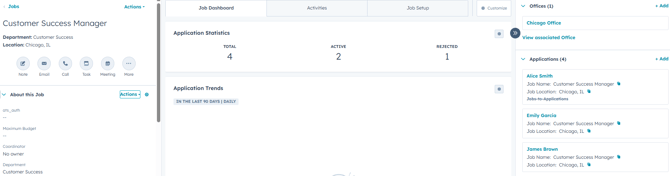
- **Job Records** - each job record contains details about the position. Such as the department, employment type, salary information, and more. An overview area in the middle also displays aggregate information about associated applications, with all of the applications available to view on the right-hand side of the page.
- **Pro Tip:** similar to application records, the job records can also be customized to your liking. Create new fields if you need more than [the default properties](https://www.google.com/url?q=https://docs.google.com/spreadsheets/d/1RczmudqXAQVBeJF222y9vI5N5xJdQpqGIYgXNvv9wxo/edit?usp%3Dsharing&sa=D&source=editors&ust=1787294058644940&usg=AOvVaw0Q3OlTKJNiUuPxeufQh_-x) provided. New or default fields can be modified, if you need to change certain field values.
*Example Job Record*
**
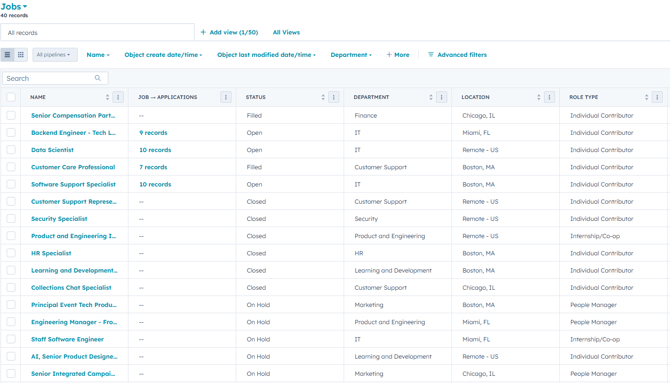
- **Job Table** - see jobs in aggregate from the table view. Use filters to sort through positions, edit columns to display useful information, and simply click on a cell to make changes or open up the full job record.
- **Pro Tip:** create saved views and apply quick filters at the top to more immediately filter down the table to jobs you care about. For instance, jobs that have a status of ‘open’ which would be actively receiving applications.
*Example Job Table*
**
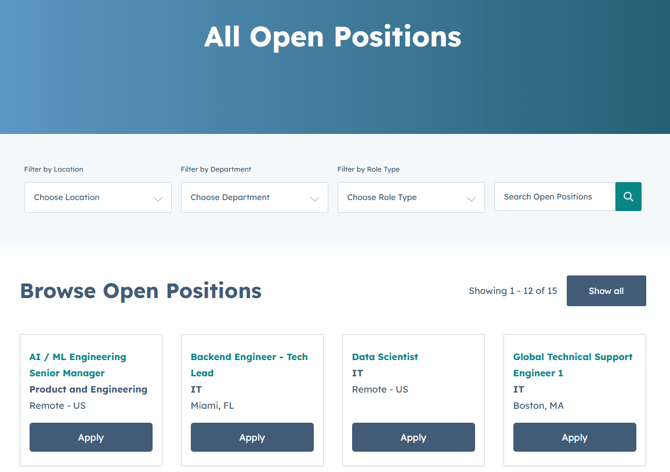
- **Job-Powered Content** - upon installation, email modules and page content are created automatically within the marketing email and website pages tools. This content interacts with the job data within the account, so there’s no maintenance required with things like adding or removing job listings from the website. Simply mark a job as ‘open’ in HubSpot, and it will post instantly to the website.
- **Pro Tip:** customize both the design of the email and page content, and choose what job information is shown. For the page content, this means you can change what filters you display to your visitors. For email content, it could be changing some of the job attributes that are highlighted within the dynamic content section.
*Example Job-Powered Page Content*
**
**3. ATS Offices -** offices represent the different locations where you are hiring - be them physical offices, job sites, or remote work locations.
- **Office Records** - the [default office properties](https://www.google.com/url?q=https://docs.google.com/spreadsheets/d/1RczmudqXAQVBeJF222y9vI5N5xJdQpqGIYgXNvv9wxo/edit?usp%3Dsharing&sa=D&source=editors&ust=1787294058648228&usg=AOvVaw1ldCwUV-XOQ9mt1i2S733h) include the location information and a friendly name that acts as the primary label.
- **Pro Tip:** Add fields and automation to help streamline other parts of your process. For instance, if parts of your hiring team are always the same for a certain office, you can create an automation to copy those people from the offices onto the job record(s) that are associated with the office.
*Example Office Record*
*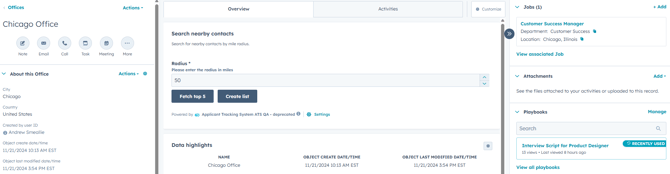*
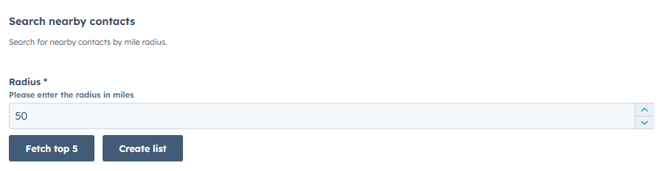
- **Office Proximity Searches** - using the [default location](https://www.google.com/url?q=https://docs.google.com/spreadsheets/d/1RczmudqXAQVBeJF222y9vI5N5xJdQpqGIYgXNvv9wxo/edit?usp%3Dsharing&sa=D&source=editors&ust=1787294058649355&usg=AOvVaw3-xaBMHLOw26jBOhnRCS94) fields in combination with location data that exists on contacts, you can run proximity searches and group candidates who are near a location. Go to the middle panel of any office record to begin the proximity search.
- **Pro Tip:** The lists that are generated by the proximity search are static lists, meaning they won’t automatically include new records. Be sure to run your search for nearby contacts when you are ready to use the list, and rerun a search if you need to refresh the list.
*Office Proximity Search Example*
**
### **Uninstallation**
In order to uninstall the Applicant Tracking System ATS App, follow the steps provided in [this article](https://www.google.com/url?q=https://knowledge.hubspot.com/integrations/connect-apps-to-hubspot%23uninstall-an-app&sa=D&source=editors&ust=1787294058650708&usg=AOvVaw3E7RwgVcygmW6ASYWbyR0e) regarding uninstalling connected apps.
Note: Uninstalling the app will impact your ability to use the functionality described above. Uninstalling the app will not cancel your billing subscription. The section below explains how to cancel your subscription.
### **Cancellation**
If you wish to cancel your subscription, you’ll first need to log-in to your profile within [app.growth-operations.com](https://www.google.com/url?q=https://app.growth-operations.com&sa=D&source=editors&ust=1787294058651563&usg=AOvVaw0Qg8tQersERT4CAD5DLcJ2)
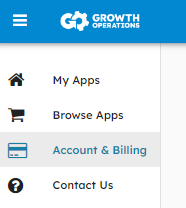
Then, on the left-hand menu, select Account & Billing.
This will bring you to where you can cancel your subscription.

### **Support**
For any additional inquiries or feature requests, please submit your feedback to info@growthoperationsco.com
[](https://www.growth-operations.com/)
[mailto:email@email.com](mailto:email@email.com)
Copyright © 2026, Growth Operations LLC