
Integration Overview
A. HubSpot Sparkfly Integration TutorialThe video linked above goes over the three components of the HubSpot <> Sparkfly integration:
- HubSpot Contacts <> Sparkfly Member Sync
- HubSpot Workflow Action To Deploy Offers To Members
- Sparkfly Offer Records That Are Created After An Offer Is Granted
General notes:
- How Sparkfly sends us data: Sparkfly notifies the integration when something changes (a webhook). One current limitation is that Sparkfly sends each notification only once — if a delivery fails, there's no automatic retry on their side. This is a known gap being raised with Sparkfly.
- Member ID vs. Member Identifier: Sparkfly gives each member two IDs — a numeric Member ID and a longer text Member Identifier. Both are used; the integration prefers the numeric Member ID and can recover it from the Identifier when missing.
- A Sparkfly Member ID is not required for the integration to create or link a contact — we can match by HubSpot ID, email, or phone+name and fill in the loyalty IDs afterward.
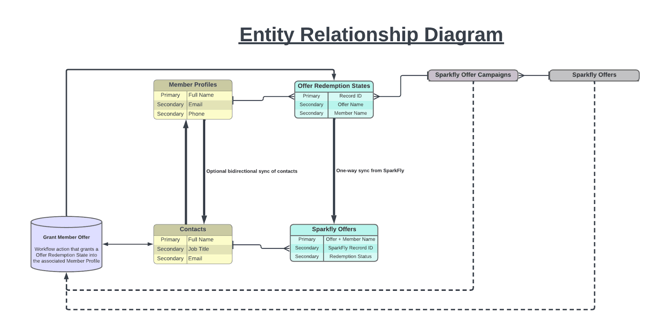
The diagram below shows the connections between different entities that exist in Sparkfly (top of the image), and how they connect to HubSpot (bottom of the image). The dotted lines indicate a reference made within a custom workflow action to those entities, but there isn’t an actual sync of those records.
The data flow diagrams below help highlight the key events where the integration is called into action. Each logic step is outlined, for a more granular understanding of how exactly the integration functions.
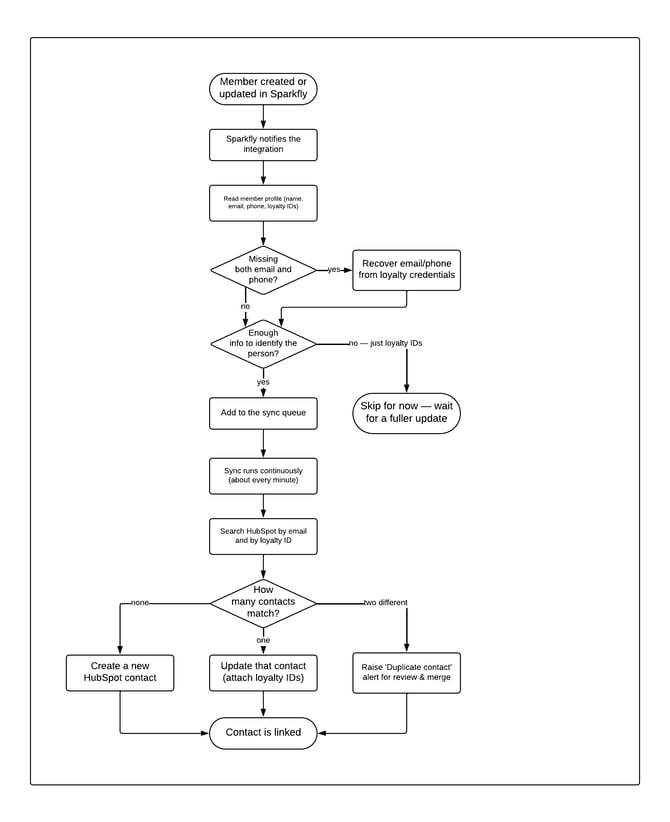
What it accomplishes: when someone signs up or their loyalty profile changes in Sparkfly, that person shows up (or gets updated) as a contact in HubSpot, with their loyalty IDs attached so they can receive offers and be segmented.
a. Sparkfly notifies us. Whenever a member is created or their profile changes, Sparkfly sends the integration a notification. We process these in the background so Sparkfly is never kept waiting. Only member events are acted on (created / profile created / profile updated).
b. We read the member's details — name, email, phone, date of birth, and their Sparkfly loyalty IDs — plus any custom fields the account has mapped.
c. We fill in gaps when we can. If the profile is missing both an email and a phone, we look at the member's loyalty credentials and recover whatever's there.
d. We skip incomplete records. If all we have is the loyalty IDs and no way to identify the person (no email, phone, or name), we hold off — a more complete update usually follows, and we don't want to create an empty contact.
e. The sync runs continuously (about once a minute) and works through the queue of pending members.
f. We look for the person already in HubSpot — searching by email and by loyalty ID at the same time.
g. Then one of three things happens: No match → create a new contact. One match → update that contact and attach the loyalty IDs. Two different contacts match → that's a duplicate (the person exists in HubSpot twice); we don't guess — we raise a 'Duplicate contact' alert for a person to review and merge. The loyalty link still lands on one contact, so nothing is lost.
Note: if HubSpot rejects an email as invalid (e.g. a typo like .con instead of .com), that one member is set aside with a 'Member email is invalid' alert and the rest keep syncing — one bad email never holds up everyone else.
2. Finding Sparkfly Member from a HubSpot Contact
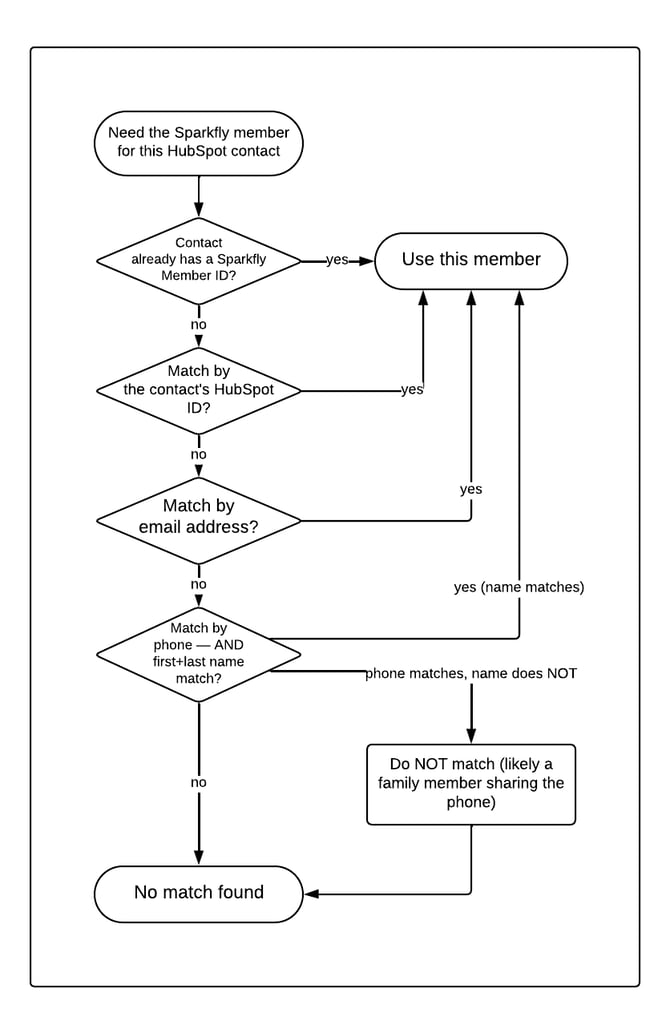
What it accomplishes: before we can grant an offer or sync a contact back, we must match the HubSpot contact to the correct Sparkfly member. We try to identify the member in this order, strongest match first:
a. Sparkfly Member ID already on the contact — if it's there, we trust it.
b. The contact's HubSpot ID — an exact, reliable key.
c. Email address — an exact match.
d. Phone number — but only if the first and last name also match. A phone match on its own is not trusted, because families often share a phone number; without the name matching, a phone match could point to the wrong person.
If none of these find a member, the integration either creates a new member (only where intended, like a two-way sync) or stops and flags it, depending on the situation.
3. Granting Offers To Sparkfly Members (HubSpot Workflow Action)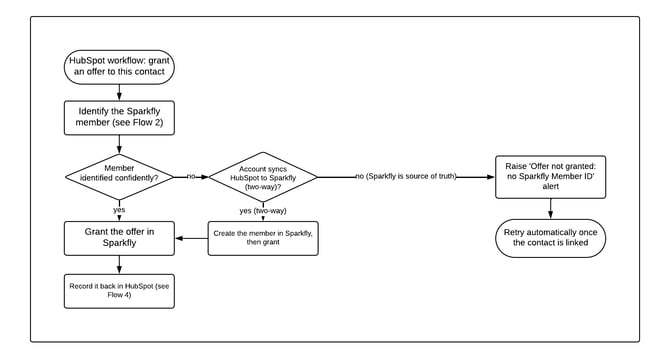
What it accomplishes: a HubSpot workflow grants a Sparkfly offer (or stored value) to a member. Because this puts real value into someone's loyalty account, matching is held to a higher bar than normal syncing.
a. Identify the member using the logic from Flow 2 — with one extra safeguard: for offer grants we do not match on phone number unless first and last name corroborate it. Granting to the wrong person would put value into the wrong loyalty account, so we're deliberately strict. (Background: in June 2026 phone-only matches landed on the wrong family member in several cases — which is why this guard exists.)
b. If we're confident, the offer is granted in Sparkfly and then recorded in HubSpot (Flow 4).
c. If we can't identify an existing member, it depends on the account's sync direction: Two-way accounts (HubSpot → Sparkfly sync on) — we create the member just-in-time and then grant. One-way accounts where Sparkfly is the source of truth (e.g. Mendocino) — we do NOT create a member (it would spawn a duplicate and fragment stored value); the offer is not granted and we raise an 'Offer not granted' alert to add the Sparkfly Member ID (or merge the contact). Once fixed, the grant succeeds automatically on retry — nothing is lost.
4. New or Updated Sparkfly Member Offer State Syncs To HubSpot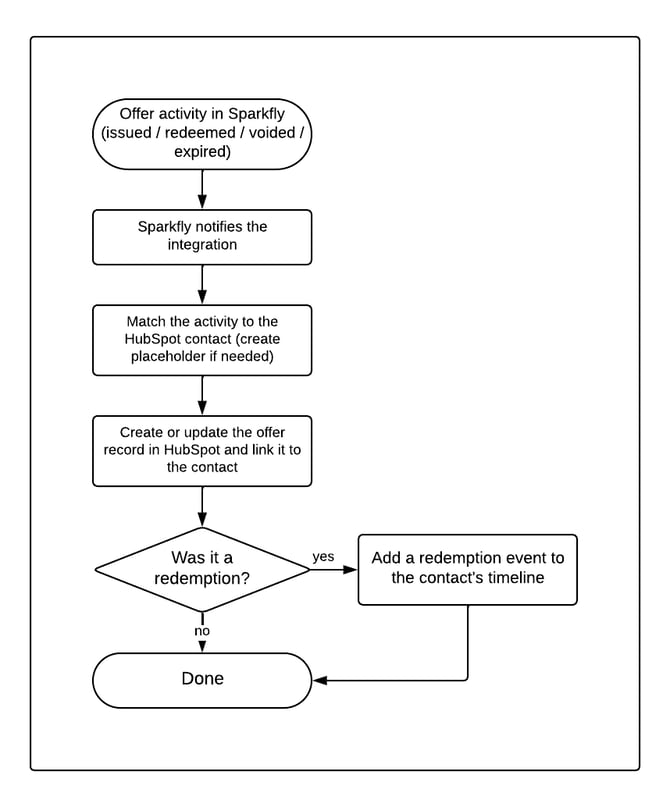
What it accomplishes: when an offer is issued, redeemed, voided, or expires in Sparkfly, that activity shows up in HubSpot as a record attached to the contact — so the team can see and report on offer history and redemptions.
a. Sparkfly notifies us of the offer activity.
b. We match it to the contact by loyalty ID (creating a placeholder contact if needed), and create or update an offer record in HubSpot, linked to the contact, reflecting its status (issued, active, redeemed, voided, expired).
c. Redemptions also get a timeline event on the contact, with transaction details, so redemption history is visible on the record.
d. If Sparkfly is temporarily unavailable while fetching redemption details, we raise a 'Redemption event not recorded' alert (with the IDs needed for Sparkfly support) and retry automatically.
Error & Monitoring
Video Guide: Sparfly Error Alerts - Invalid Email Address - How to find the errors & monitoring area within HubSpot. User path for quick reference is – global settings (gear icon) > connected apps > Sparkfly > settings > alerts & monitoring.
Below is a table of the unique error alerts that our integration may surface, what they mean, and recommended next steps for each.
|
Error Title |
Description |
Recommended Next Step |
|
Member email is invalid |
HubSpot rejected the member's email (usually a typo/bad domain, e.g. .con instead of .com). That member can't sync until it's fixed. |
Correct the email (the alert suggests a fix for obvious typos), or skip the member. Other members keep syncing. |
|
Duplicate contact in HubSpot |
The same Sparkfly member is matching two different HubSpot contacts — the person exists in HubSpot twice. |
Review the two contacts in the alert and merge them. The link is already on one, so syncing isn't blocked. |
|
Sparkfly member ID conflict |
A member's Sparkfly ID is already attached to a different contact, so the incoming person synced without their loyalty link. Often the same person with two emails. |
If it's the same person, use the alert's action to update the existing contact's email. If genuinely different people, it points to a Sparkfly data issue to investigate. |
|
Duplicate email across Sparkfly members |
Two different Sparkfly members have the same email. Their details were combined onto one HubSpot contact. |
Review — usually two Sparkfly records for one person. Clears automatically if the conflict is resolved. |
|
Offer not granted: no Sparkfly Member ID |
An offer couldn't be granted because we couldn't confidently identify the member (no ID on the contact, and no safe email/name match). |
Add the Sparkfly Member ID to the contact, or merge it with the correct contact. The offer grants automatically afterward. |
|
Redemption event not recorded |
Sparkfly was temporarily unavailable while recording a redemption, so the timeline event wasn't written. |
Usually self-resolves on retry. If it persists, the alert has the IDs to give Sparkfly support. |
Note: Your context may dictate other next steps than what we suggest. Make sure you understand any impact the change may have within other pieces of your setup.
Other Tips & Tricks
A. Bulk Grant Sparkfly Offers Via HubSpot - How to use the workflow action within HubSpot to grant offers in bulk.
B. Individually Grant Sparkfly Offers Via HubSpot - How to create a manual enrollment workflow, and enroll contacts into workflows individually.
C. How To Use Sparkfly Tokens Within HubSpot Emails - How to pull the credential identifier from an offer into the body of a marketing email.
Still have questions? Email info@growthoperationsco.com for assistance.