
Overview
Use workflows to automatically create, update, and delete line items.
Features four (4x) deal-based workflow actions that can:
- Create an individual line item
- Create multiple line items
- Update line item fields
- Delete line items from a deal
Prerequisites
Before proceeding, make sure you have signed up for a Growth Operations account here. You’ll also need access to deal-based workflows as part of your HubSpot subscription.
Installation
You can install the app by visiting app.growth-operations.com, selecting the integrations tab, clicking “Add a new integration” or “Browse Apps” and then clicking the install button next to Line Item Assistant.
Installing the app will automatically sign you up for a freemium plan, which includes all features of the app. The first 100 actions are free each month. The next step is authorizing HubSpot.
Authorization
On the authorization screen, click the “Connect” button to get started.
This will take you to hubspot.com to select your desired portal to connect to and to approve the necessary permissions.
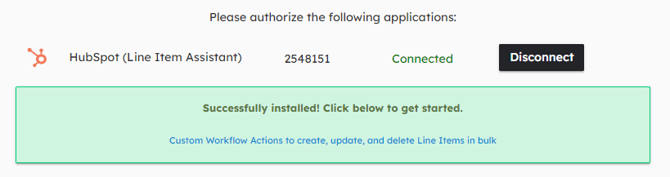
Once you are connected, the installation is complete!
Your screen should then look like this:
Usage
You can now use the custom workflow actions within deal-based workflows.
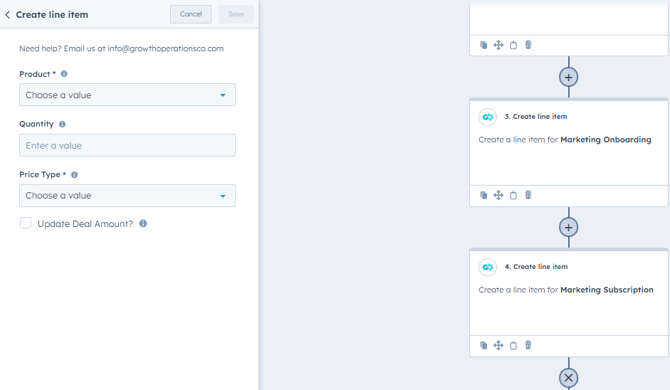
Create Line Item - Add a line item to an existing deal. Enter the quantity as a static value, or pull dynamically from a field on the enrolled deal. Price type can also be dynamic from a deal field, or static, or defer to the product's default price.
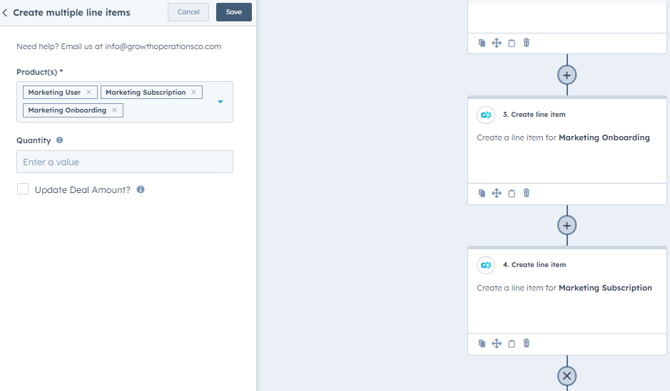
Create Multiple Line Items - Add multiple line items all at once. Great for adding a package of line items onto a deal. With all of the line item assistant workflow actions, you also have the option of updating the deal amount to reflect the new line item total.
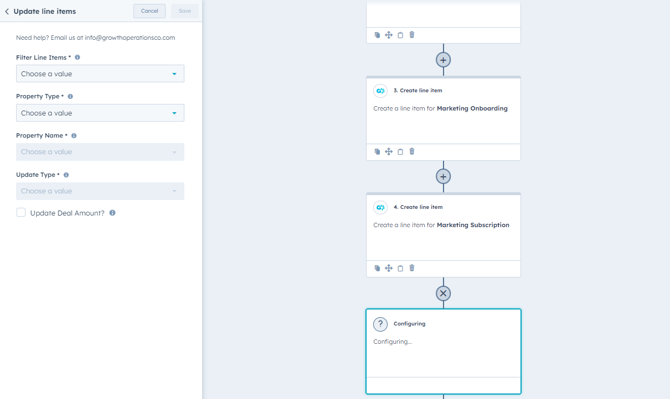
Update Line Items - This feature is a game changer. You can update ANY product property (default or custom), filter down to the exact line items you want to update, AND run updates retroactively to fill in missing data on existing line items.
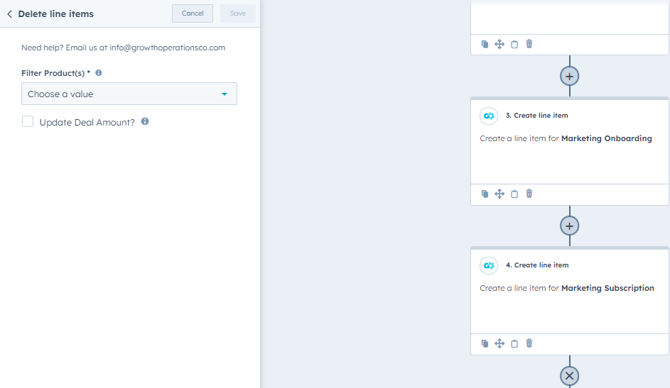
Delete Line Items - Deleting line items is just as important as adding and updating new line items. You need to make sure your line items are always accurate, and sometimes that means removing a line item from a deal.
Uninstallation
In order to uninstall the Line Item Assistant app, follow the steps provided in this article regarding uninstalling connected apps.
Note: Uninstalling the app will not delete any of your existing data, however, it will impact your ability to use the functionality described above.
Cancellation
If you wish to cancel your subscription, you’ll first need to log-in to your profile within app.growth-operations.com.
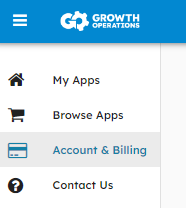
Then, on the left-hand menu, select Account & Billing.
This will bring you to where you can see all of your active subscriptions.
Click the cancel plan button next to your Line Item Assistant subscription to complete your cancellation.
Support
For any additional inquiries or feature requests, please submit your feedback to info@growthoperationsco.com